What you need
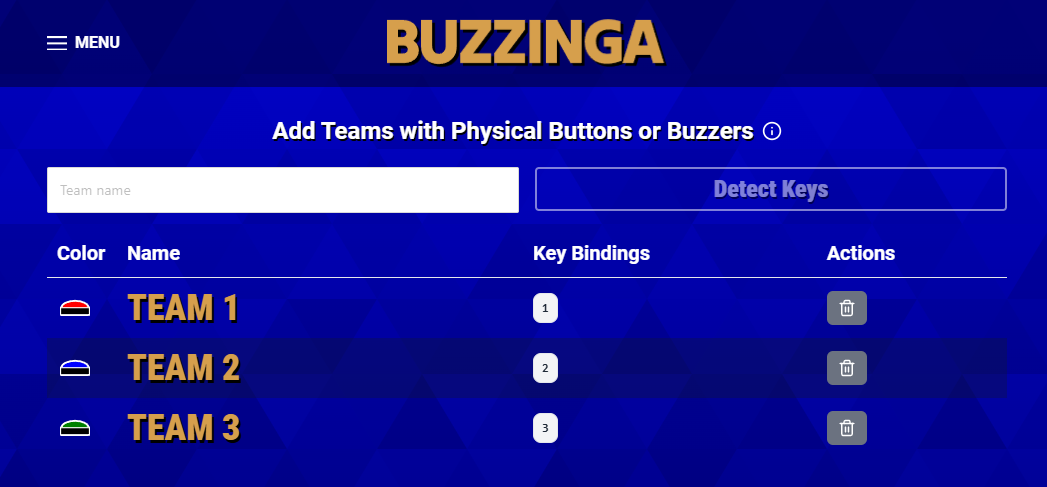
Buzzinga works with physical buttons or buzzers that send a keyboard keypress to the host computer. They can be wired or wireless, but each buzzer must send a unique key so Buzzinga can tell the players apart.
Number keys are a good choice because Buzzinga uses several letter keys as shortcuts while you host. For example, you could map the red buzzer to 1, blue to 2, and green to 3.
The Basic plan supports up to three players in total. Buzzinga Pro and Buzzinga Teams support an unlimited number of players.
Add a player and detect their buzzer
- Connect the buzzers or their USB receiver to the computer that will run Buzzinga.
- Open the Buttons & Buzzers page.
- Enter the player’s name.
- Click Detect Keys.
- Press that player’s physical buzzer. Its key will appear under New keys.
- Click Done to add the player.
- Repeat these steps for every player.
Buzzinga will not let two players use the same key. If the detected key is already assigned, reset the selection and press a different buzzer.
Test the buzzers
Press each buzzer from the Buttons & Buzzers page and confirm that Buzzinga registers it for the correct player. You can edit a player’s key bindings, change their buzzer sound, or remove them from the table.
During the game, keep at least one Buzzinga browser window active on the computer connected to the buzzers. This can be the Audience View or the Host Controller. If Buzzinga says it is not listening for physical buzzers, click the game window to make it active again.
Buzzinga remembers the physical-buzzer players on that computer. At your next game, choose Add players from previous game if you want to restore the same players and key bindings.
Play the game
Physical-buzzer players appear on the game board like players who joined from their phones. When buzzing opens, Buzzinga listens for their assigned keypresses, identifies who buzzed first, and lets the host score the response normally.
If you use teams and Auto Balance Teams is turned on, new physical-buzzer players are automatically assigned to the team with the fewest players. You can adjust their teams before starting the game.
Submit Final Wager Round wagers and responses
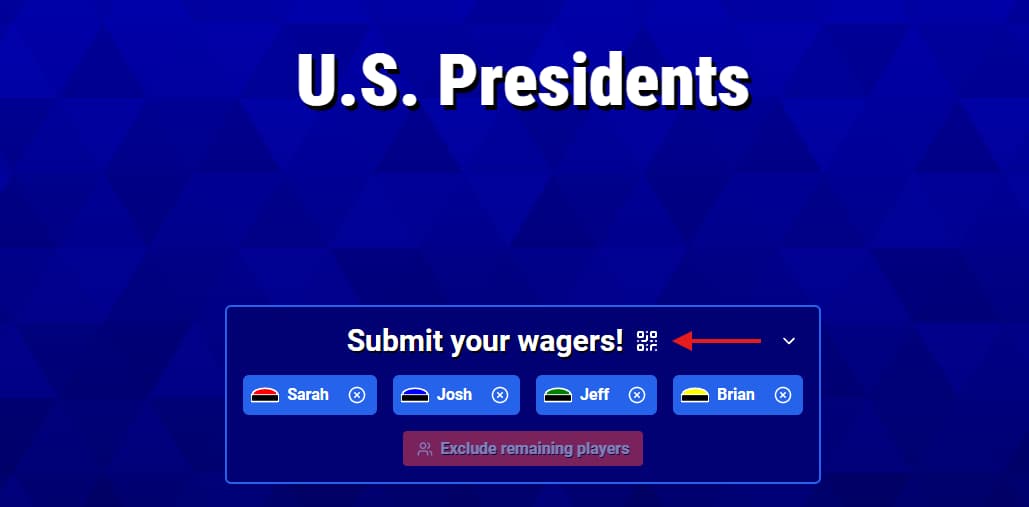
Physical buzzers cannot be used to type a private wager or response. When you reach the Final Wager Round, select the QR-code icon in the Submit your wagers! box to show the Final Round QR code and URL.
Each player opens that page on a phone or other device, selects their name, and submits their wager. If you are using teams, only one player from each team needs to use the page and submit for the team. After the clue is shown, they use the same page to submit the response. You can expand the QR code to make it easier for the room to scan.
For the rest of the round, see Setting up the Final Wager Round.
Choosing physical buzzers
Any buzzer that sends a unique keyboard keypress should work. If you are ordering a preconfigured set, ask the seller to map each buzzer to a different number key.
We have found the wireless tabletop buzzers from AffordableBuzzers.com easy to set up and use. Buzzinga is not affiliated with AffordableBuzzers.com.