Importing and exporting CSV files is available with Buzzinga Pro.
Download the CSV template
The template contains all of the column headings Buzzinga expects and rows for each category and clue. Start with it instead of creating a spreadsheet from scratch.
- Go to the Buzzinga homepage and edit a board.
- Click the gear icon at the top of the board editor.
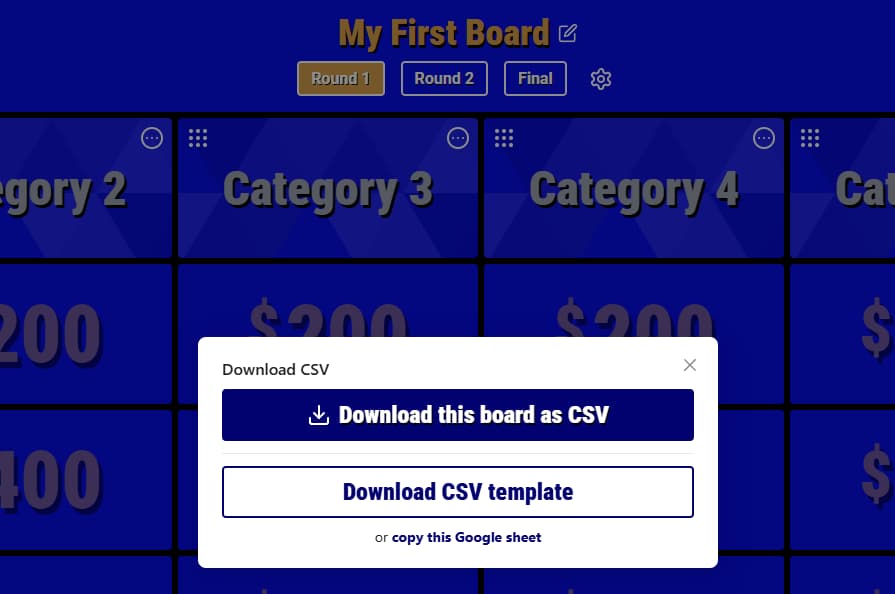
- Select Download CSV.
- Click Download CSV template, or choose copy this Google sheet if you prefer to work in Google Sheets.
You can also click Download this board as CSV to use one of your existing boards as a starting point.
Understand the spreadsheet
Each row represents one clue. A board can contain two or three standard rounds with six category columns and five clue rows in each round, plus one Final Wager Round clue.
The columns most people need are:
| Column | What to enter |
|---|---|
round | 1, 2, or 3. Use final for the Final Wager Round. |
col | The category’s position from 1 through 6. |
cat | The category title. Repeat it for each clue in that category. |
catDescription | An optional category description. |
row | The clue’s position from 1 through 5. |
customValue | An optional whole-number point value from 1 through 9999. Leave it blank to use the round’s normal values. |
clueText | The clue shown to players. |
correctResponse | The response shown to the host. |
isDailyDouble | Enter TRUE to make the clue a Daily Wager; otherwise use FALSE. |
For the Final Wager Round row, enter final under round, then complete cat, clueText, and correctResponse. Leave col, row, and customValue blank.
The remaining columns support advanced clue options:
clueTypeandanswerTypeacceptTEXT,IMAGE,AUDIO, orVIDEO.topCaption,bottomCaption,answerTopCaption, andanswerBottomCaptionadd captions around media.buzzerActivationModeacceptsnone,default,automatic, ormanual.isAudioOnlyandisAnswerAudioOnlyacceptTRUEorFALSE.
For image and audio content, use the media URL in clueText or correctResponse. For video, use the YouTube URL. The CSV stores links and content settings; it does not contain the media files themselves.
Prepare the CSV file
- Keep the template’s header row and column names unchanged.
- Leave unused categories or clues blank instead of removing the template structure.
- Use a spreadsheet application’s CSV export instead of copying the cells into a text file. This correctly handles commas, quotation marks, and line breaks inside clues.
- Save or download the file as a UTF-8
.csvfile. In Google Sheets, choose File → Download → Comma Separated Values (.csv). - Review media URLs and confirm that anyone hosting the board will still be able to access them.
Import a CSV file
CSV files are imported into the board you are currently editing. Importing does not create a new board.
- Create a blank board or edit the board you want to update.
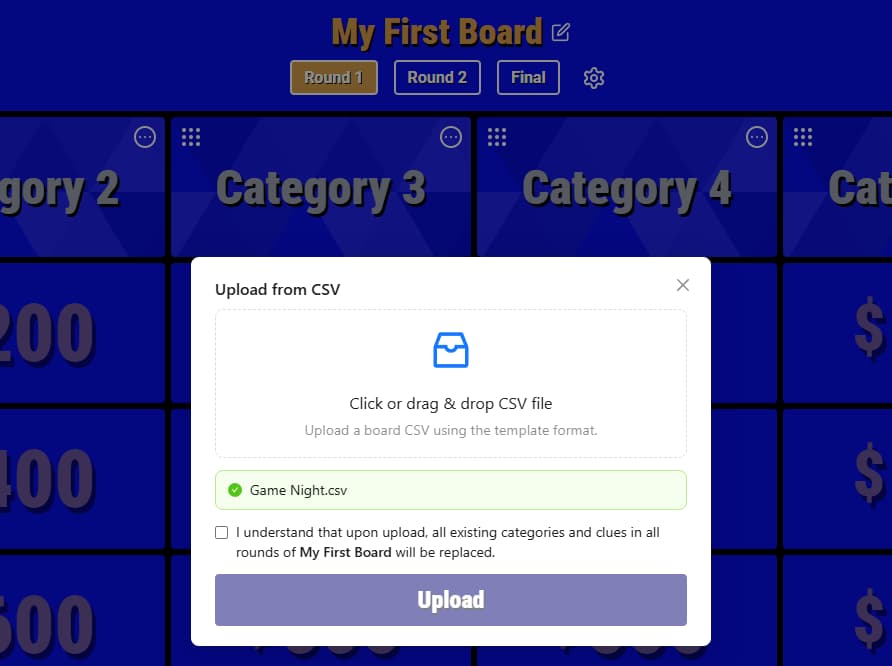
- Click the gear icon and select Upload CSV.
- Click the upload area to choose your
.csvfile, or drag and drop the file into the window. - Wait while Buzzinga validates the file.
- If the board already contains content, check the confirmation box and click Upload.
Importing replaces all categories and clues in every standard round, along with the Final Wager Round content. The board’s name and settings are not replaced.
If you may need the current version later, duplicate the board or export it before importing the new file.
Export a board
- Edit the board you want to export.
- Click the gear icon and select Download CSV.
- Click Download this board as CSV.
Buzzinga downloads a file named after your board. It includes the categories and clues from every standard round, the Final Wager Round, category descriptions, custom clue values, Daily Wagers, media types and captions, and clue-specific buzzer settings.
The export does not include board settings, joined players, teams, scores, or game history. Use it to edit board content in bulk, move content into another board, or keep a spreadsheet backup.
Fix import errors
Buzzinga checks the file before replacing your board. If it finds a problem, the upload window identifies the affected CSV row or board location when possible.
Common problems include:
- A header was renamed or removed. Download a fresh template and copy your content into it.
- A row contains more or fewer fields than the header, often because a comma or quotation mark was edited outside a spreadsheet application.
clueTypeoranswerTypecontains something other thanTEXT,IMAGE,AUDIO, orVIDEO.buzzerActivationModecontains something other thannone,default,automatic, ormanual.- A custom clue value is not a whole number from
1through9999. - A round, category column, or clue row is in the wrong position.
Correct the reported row in your spreadsheet, download it as a CSV again, and retry the upload. If you are unsure which field is causing the error, compare the file’s headers and values with a newly downloaded Buzzinga template.