Add the final category and clue
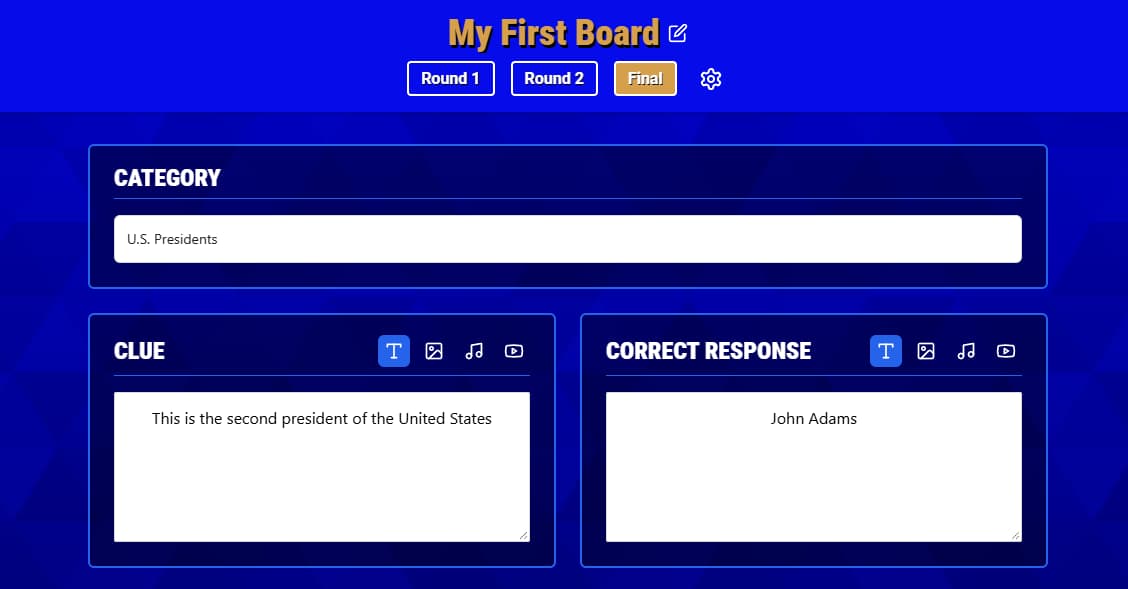
- Go to the Buzzinga homepage and edit the board you want to update.
- Select Final at the top of the board editor.
- Enter a Category.
- Add the Clue that players will see.
- Add the Correct Response the host will use when scoring.
- Click Preview to check the clue and response, then click Save.
The category, clue, and correct response are all required. You can also add an image, audio, or video to the clue or correct response.
Prepare players to submit
Players who joined the room on their phones submit their own wagers and responses. In team games, the captain submits one wager and one response for the entire team.
If your players are using physical buzzers instead of joining the room on their phones, see Using physical buzzers for the separate Final Wager Round submission flow. The host can also select a player or team and enter a wager or response on their behalf.
Before the game, open Game Settings and find Final Wager Countdown if you want to limit how long players have to submit a response. Set it to 0 to remove the countdown.
Collect player wagers
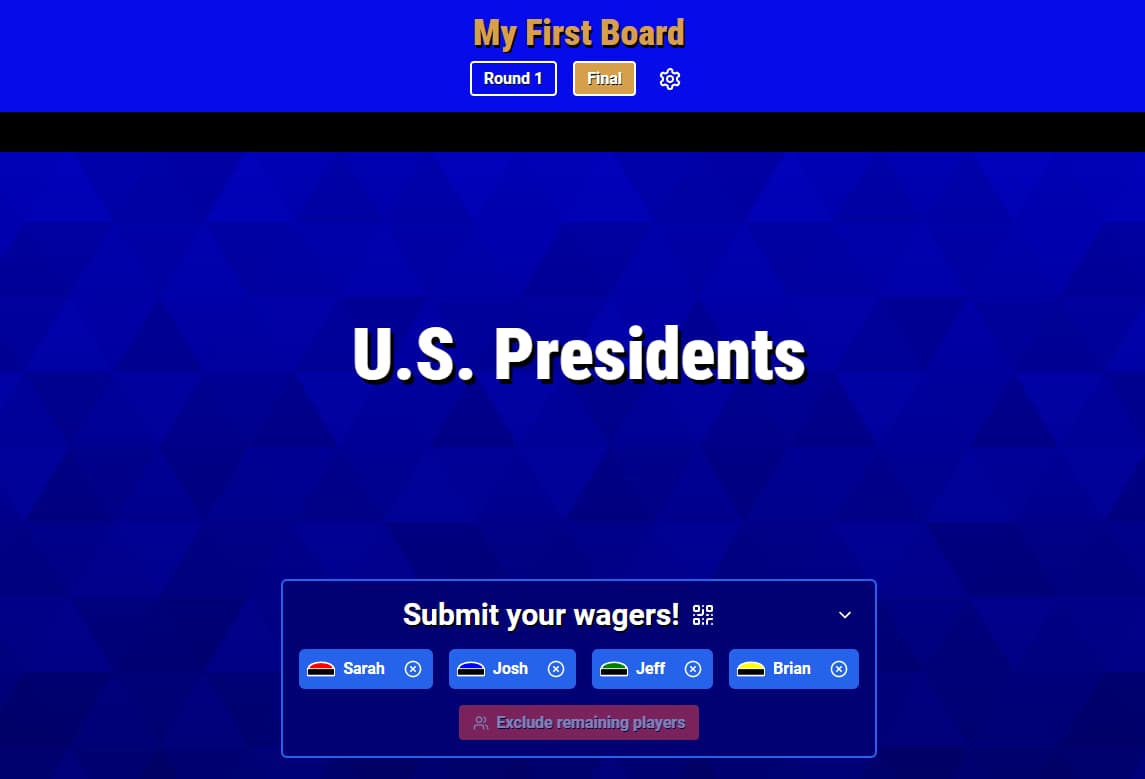
- Open the Final Wager Round and click Show category.
- Buzzinga displays the category while keeping the clue hidden.
- Each player submits a wager from their phone. In a team game, the captain submits for the team.
- Watch the submission status in the host controls: on the Audience View in Standard mode or on the private Host Controller in Host Controller mode. If a player is taking too long or will not participate, select the X beside their name to exclude them from the round.
The minimum wager is 0 points. The maximum is the greater of:
- The player or team’s current score
- 1,000 points
This means a player or team with 1,000 points or less can wager up to 1,000. A player or team with more than 1,000 can wager up to their current score.
Collect final responses
After you click Show clue, the clue appears and players can submit their responses from their phones. In a team game, the captain responds for the entire team.
You can play or stop the final-round music while players are answering. If you configured a Final Wager Countdown, select the timer button when you are ready to start the countdown. When time expires, players who have not submitted a response are recorded as having no response. Partial responses are omitted.
The host can select a player or team to enter a response for them or mark their response blank. When everyone has responded—or the remaining responses have been marked blank—click Show answers.
Reveal and score the round
Buzzinga walks through the players or teams one at a time, beginning with the lowest score before the wager was applied.
For each player or team:
- Reveal their response.
- Reveal their wager.
- Mark the response Correct or Incorrect.
Buzzinga adds the wager for a correct response and subtracts it for an incorrect response, then updates the score automatically. After every response has been scored, reveal the correct response and review the final standings.
Test the complete round
Preview the board and confirm that the category, clue, correct response, and any media appear as expected. Before a live event, also run a short test game using the same setup your players will use—especially if you will have teams, a response countdown, or a mix of devices.
Add at least one player to the room before testing the complete Final Wager Round. A player needs to submit a wager and response for you to test the full flow.