Start a new board
- Go to the Buzzinga homepage.
- Click Create New Board.
- Enter a Board name. If you belong to a Buzzinga Teams workspace, you can also choose where to save the board.
- Click Create to open the board editor.
Choose the round you want to edit
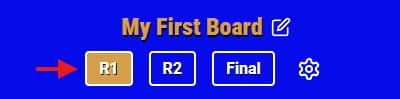
Use the round buttons at the top of the editor to move between sections of your board:
- R1 edits the first round.
- R2 edits the second round.
- Final edits the category, clue, and correct response used for the final wager round.
The selected button shows which round you are currently updating. Categories and clues are stored in that round, so check the selected button before you start editing.
Add a third round for extended play
Boards include two standard rounds, but you can add a third when you want a longer game.
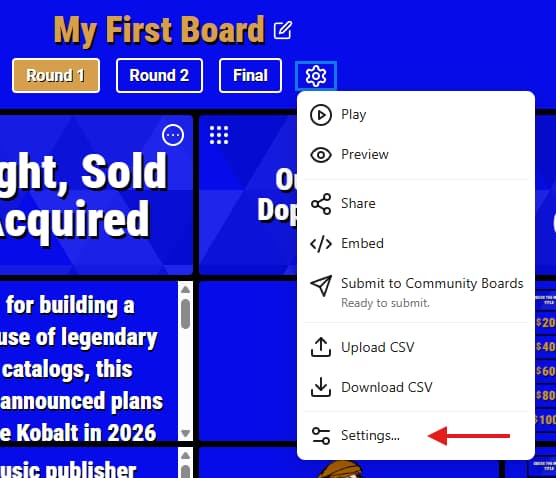
- Click the gear icon at the top of the board editor.
- Click Settings… in the menu.
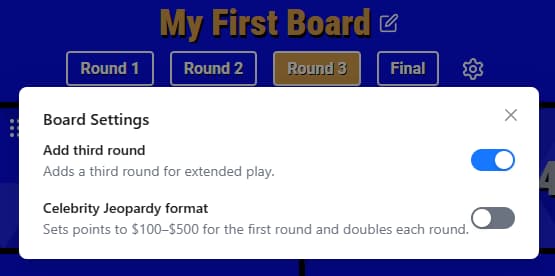
- In Board Settings, turn on Add third round.
Buzzinga creates a blank third round and opens it in the editor. An R3 button will appear with the other round selectors so you can return to it later.
Add categories
Each standard round has six category columns. To name one, click its category title, type the new name, then press Enter or click elsewhere to save it.
You do not need to use every column. Leave a category and its clues blank when you want fewer than six categories in a round.
The menu in the corner of each category also lets you import a category, create one with AI, swap it with another category, add a description, or clear its contents. See Importing categories, Creating categories with AI, and Swapping categories for those workflows.
Remove categories
You do not remove category columns. If you do not want a category to appear when you play, leave its title and clues blank. Buzzinga will not show blank categories on the game board.
Add clues and correct responses
- Select a clue value under a category to open the clue editor.
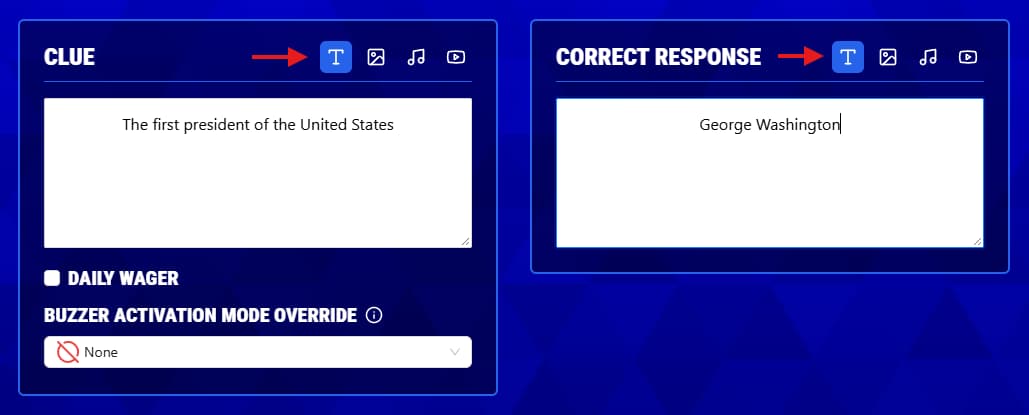
- Enter the text players will see under Clue.
- Enter the answer the host will use under Correct Response.
- Click Preview to check how both sides will appear during the game.
- Click Save before closing the clue editor.
You can also add images, audio, and video or turn a clue into a Daily Wager.
Set up the final round
Select Final at the top of the editor, then add its category name, clue, and correct response. For the complete player and host flow, see Setting up the final wager round.
Preview your board
Return to the Buzzinga homepage and click Preview on the board. Check each round before hosting:
- Confirm that you edited the intended round and that every category is in the correct place.
- Open each clue and reveal its correct response.
- Test every image, audio clip, and video.
- Check the final round and R3 if you added them.